 Rafael Weiss ( Androind Engineer )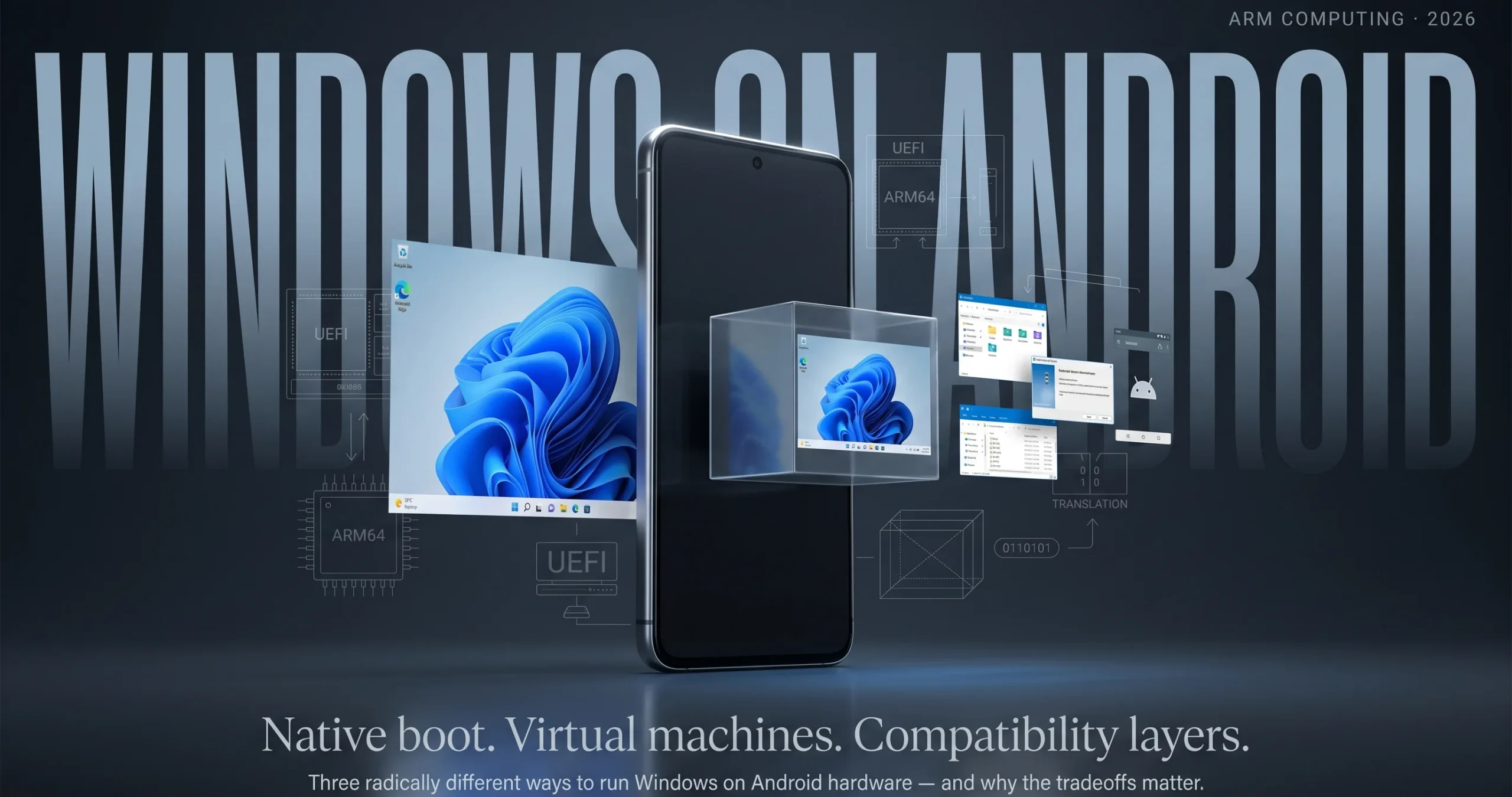
The brief answer: Yes, an Android phone can use Windows 10 (or 11) – however, the manner in which you go about it is the key. Three methods exist in practice: booting Windows directly on the hardware natively as part of the Renegade Project, executing it in a virtual machine via QEMU or using a compatibility layer such as Winlator to execute specific Windows programs without having anything to do with the operating system. Their performance, level of risk and practical application is wildly different. This paper dissects all three to make you fully aware of what you getting yourself into before you put even a slice of it in your mouth.
What “Windows on Android” Actually Means (And What It Doesn’t)
Here’s where most people get confused — “Windows on Android” isn’t one thing. It’s at least three very different things depending on who’s doing it and why.
Your Android device is most definitely an ARM processor, most likely a Qualcomm Snapdragon. An ARM64 version of Windows 10/11 is also developed by Microsoft to run thin laptops such as the Surface Pro X, although on the same architecture. This overlapping caught the attention of independent developers, who began to wonder: what about just… running windows on the phone?
Yes, but it is complicated, was the answer. There were three approaches which are totally different in their working.
| Method | What Actually Happens | Native or Emulated? |
| Renegade Project (native dual-boot) | Custom UEFI firmware replaces the bootloader; Windows boots directly on the hardware | Native — no emulation layer |
| QEMU / Limbo (virtualisation) | Windows runs inside a virtual machine hosted by Android | Emulated or hardware-assisted (if KVM is available) |
| Winlator (compatibility layer) | Doesn’t install Windows — translates individual Windows app calls to run on Android | App translation only, not a full OS |
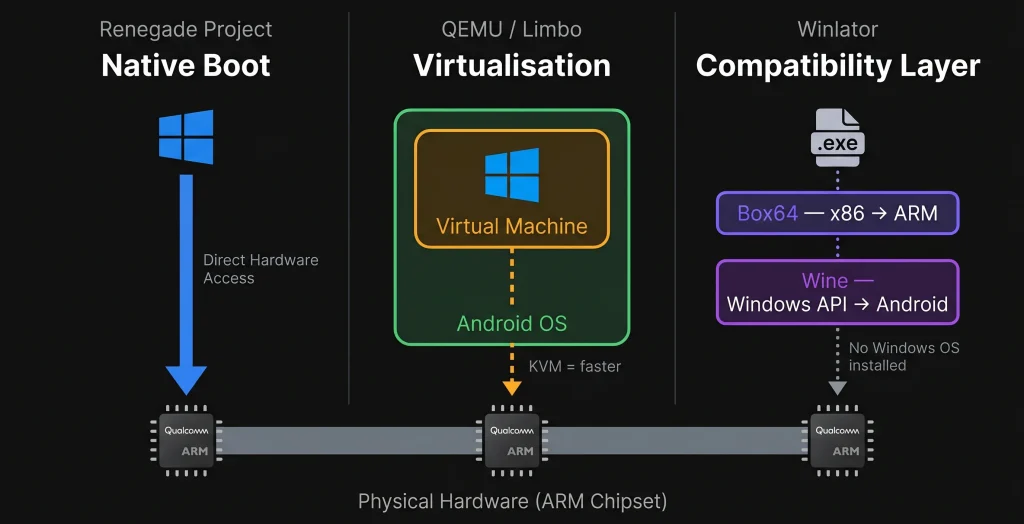
The distinction matters a lot. Winlator is easy and safe. The Renegade Project is powerful but genuinely risky. QEMU sits somewhere in the middle. Let’s go through each one properly.
The Renegade Project: Booting Real Windows on a Phone
What It Is
The Renegade Project is a free, community-driven project – no corporation involved, just some developers who hoped to be able to run Windows on Android hardware. What is unique about it: Windows is not running within Android. Android isn’t running at all. The phone starts windows in the same manner that a laptop would.
It removes this by installing custom UEFI firmware based on TianoCore EDK II, instead of the stock bootloader on the phone. The low-level software that initialises hardware then loads an operating system is known as UEFI – what a Windows laptop loads before Windows even begins to load. When that is installed, the hardware of the phone will be identifiable to the OS of a Windows PC and Windows will boot.
How the Installation Actually Works
This isn’t a one-tap process. It’s a multi-step technical procedure and every step matters:
- Unlock the bootloader — needed to flash anything custom; most manufacturers allow this but it wipes the device.
- Flash a custom recovery — tools like Orange Fox or TWRP replace the stock recovery partition.
- Repartition internal storage — the userdata partition gets shrunk to carve out space for Windows.
- Flash the UEFI bootloader — the edk2-msm image goes into the boot partition.
- Deploy the Windows image — an ARM64 Windows ESD or WIM file (sourced from Microsoft’s UUP dump) gets applied to the new partition.
- Inject device drivers — touch, Wi-Fi, Bluetooth, GPU drivers get slipstreamed into the Windows image.
- Configure dual-boot — a boot manager lets you pick Android or Windows at startup.
Step 6 is where most of the hard work lives. Writing drivers for hardware that was never designed to run Windows is slow, painstaking work and it’s never fully complete.
Which Phones Actually Support It
Support is almost entirely limited to Qualcomm Snapdragon devices, because that’s where the developer community has focused. Here’s the current picture:
| Chipset | Supported Devices |
| Snapdragon 845 | OnePlus 6/6T, Xiaomi POCO F1, Mi Mix 2S, LG G7, LG V40, Samsung Galaxy S9/S9+ (Snapdragon) |
| Snapdragon 835 | Samsung Galaxy S8, Xiaomi Mi 6, OnePlus 5/5T, Google Pixel 2/2 XL (experimental) |
| Snapdragon 855/860 | LG G8/G8x, OnePlus 7 series, Xiaomi POCO X3 Pro (limited) |
| Other | Raspberry Pi 4 (broad community support) |
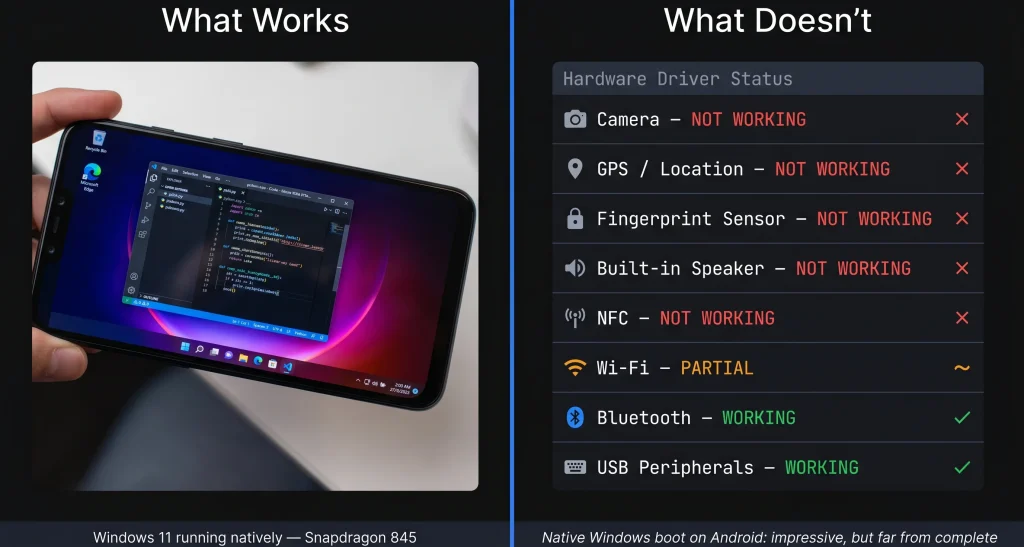
A real-life review of a POCO M2 Pro user who has tried Windows 11 claimed it was like using a bare i3 laptop with 4 GB of RAM – there was some slight lag, but it worked. Native applications such as VS Code, Chrome and Python were running. USB mice, flash drives and keyboards were identified. There were no problems with audio via the built-in speaker, but with the Bluetooth and USB audio adapters.
What’s Still Broken (And the Risks)
Fact of the matter: this is experimental equipment. You should not enter in with high expectations.
- Camera, GPS, NFC, fingerprint sensor — usually do not work, as these are not drivers.
- Battery life — Windows does not have fine-grained power control as Android; be prepared to see high drainage and heat.
- Brick risk — a single mistake in the repartitioning or flashing can cause irreparable damage to the device. The general warning of the community: Do not attempt this in case you cannot afford to lose the device.
- No Microsoft support — this hardware is completely unsupported; you’re on your own.
QEMU and Limbo: Running Windows Inside a Virtual Machine
The Safer (But Slower) Alternative
Can’t – or can’t want to – tamper with your bootloader? There’s another way. There are applications such as Limbo x86 PC Emulator and Vectras VM that bundle the popular open-source machine emulator, QEMU, into an Android application. Rather than being replaced by Android, Windows is executed in a virtual machine which is hosted by Android.
Imagine it is like a PC within a phone. Android continues running as normal under and Windows runs in a sandboxed environment as top.
Two Very Different Performance Realities
Here’s where KVM becomes the key word.
Without KVM (most devices): QEMU completely software-emulates the CPU. Each and every application that Windows attempts to execute is translated in software and then executed. One developer tried windows 10 PE on Snapdragon 870 and said that it was unstable and extremely slow even with 1.5 GB of RAM assigned to it. It may take tens of seconds to open the Start menu. Practically speaking – not useful in practice, all right in experimentation.
With KVM (Kernel-based Virtual Machine): KVM takes advantage of the ARM Virtualisation Extensions that are built into the CPU to execute guest code on the processor without using the software translation layer almost at all. KVM can be supported via a Magisk module on rooted Google Pixel devices and Windows on ARM is almost as fast as native. The snag: KVM support has been disabled in most manufacturers kernels, therefore it cannot be found on most phones.
| Setup | Speed | Root Needed? | Practical? |
| QEMU without KVM | Very slow | No | Experimentation only |
| QEMU with KVM | Near-native | Yes (Magisk) | Yes, on compatible devices |
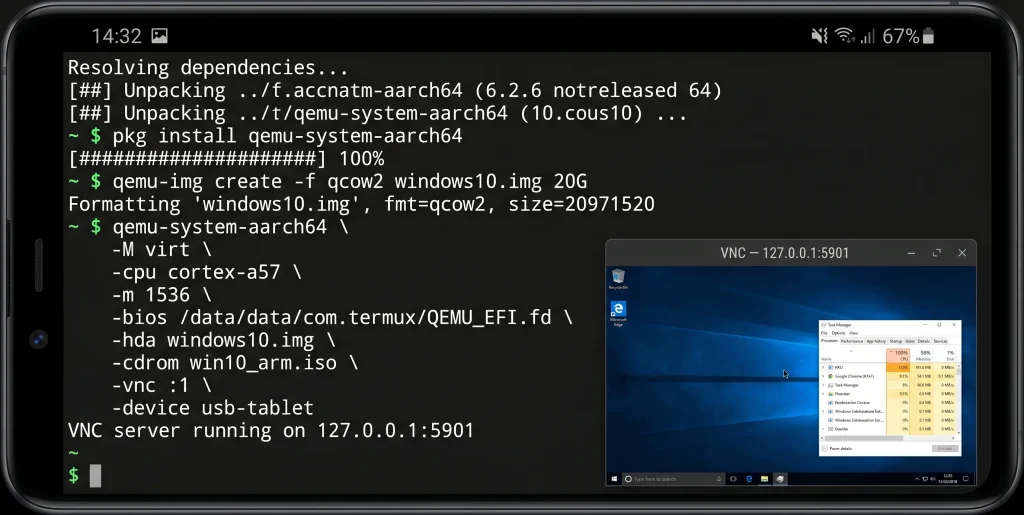
The Termux + QEMU Setup (For the Curious)
If you want to try this without a dedicated app, a common workflow runs through Termux — install it from F-Droid, not Google Play (the Play version is outdated and unmaintained):
- Install QEMU inside Termux (pkg install qemu-system-x86_64 or qemu-system-aarch64).
- Create a QCOW2 virtual disk image on internal storage.
- Launch the VM with the appropriate CPU, memory and disk flags.
- Connect via VNC to view the Windows desktop (QEMU doesn’t render directly to the Android screen).
No GPU acceleration in this setup — the Windows desktop renders entirely in software. It works, but slowly.
Winlator: The Practical Middle Ground Most People Actually Want
It’s Not Windows — But It Runs Windows Apps
Winlator gets lumped into “Windows on Android” conversations constantly and it kind of belongs there — but it’s doing something fundamentally different from everything above. There’s no Windows OS being installed. No bootloader gets touched. What Winlator does is translate Windows application calls so individual programs can run directly on Android.
Two components make this work together:
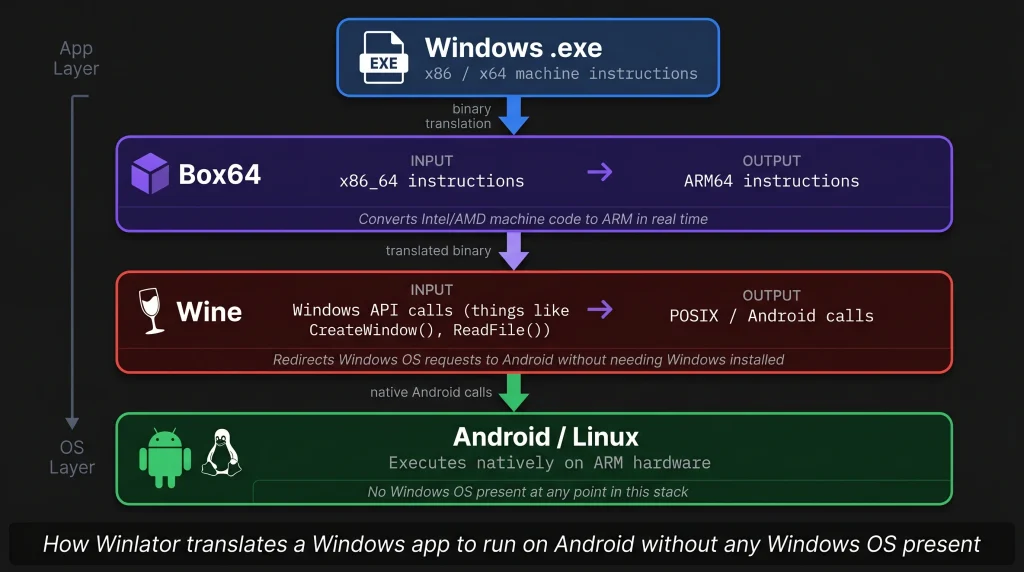
- Wine — translates Windows API calls (instructions an .exe sends to the operating system) in real time into Linux/Android counterparts.
- Box86/Box64 — dynamic binary translators that compile x86/x64 machine code into ARM code in real-time because most Windows applications have been compiled to run on Intel/AMD processors.
The way that works is that when you run a Windows .exe with Winlator, Box64 will capture the x86 code and convert it to ARM and Wine will capture Windows OS calls and convert them to Android. The two layers of translation that are in operation simultaneously. It is truly amazing the fact that it does.
What Actually Runs on Winlator
Productivity apps — Office suites, older versions of Photoshop, legacy tools with no Android equivalent — generally run with reasonable performance. Lighter games do too. Anything making heavy use of 3D graphics or deep system-level APIs will struggle, because both translation layers add overhead and there’s no direct GPU path for DirectX calls the way a native Windows machine would have.
That said, for the specific use case of “I need this one Windows-only program and there’s no Android version” — Winlator is genuinely the right answer. No brick risk, no root required, no partitioning. Just install the APK, configure Wine, drop in your .exe.
Winlator vs. Full Windows — Know the Difference
| Winlator | Renegade / QEMU | |
| Installs Windows OS? | No | Yes |
| Root required? | No | Yes (Renegade) / Sometimes (QEMU) |
| Risk to device? | None | High (Renegade) / Low (QEMU) |
| Runs any Windows app? | No — compatibility varies | Yes, whatever Windows supports |
| Performance | Good for supported apps | Native (Renegade) / Slow without KVM |
| Best use case | Specific Windows apps on a working Android phone | Repurposing old hardware as a Windows PC |
Why Does Anyone Actually Do This?
Fair question. Running Windows on a phone is technically fascinating, but what’s the real-world motivation? A few genuinely practical reasons come up repeatedly in the community:
Repurposing Old Flagships
A Snapdragon 845 phone that is 2 years old, has a broken screen and a 60 percent battery capacity is no longer a good daily driver. Low-power windows server or a dedicated machine with a single application, but? Silicon still in abundance there. Renegade project was specifically designed to support this use case.
Pocket Development Environment
Plug in a USB-C hub, connect a keyboard and monitor and a phone running native Windows becomes a surprisingly capable coding workstation. VS Code, Python, Arduino IDE — all confirmed working on Renegade installs. Developers travelling light have used this setup for exactly that reason.
Running Legacy or Niche Windows Software
Some engineering tools, vintage games and proprietary business applications simply have no Android equivalent and never will. A VM or Winlator fills that gap without needing a second device.
Learning How Operating Systems Actually Work
Writing UEFI firmware and ARM drivers from scratch is a masterclass in low-level systems programming. A significant part of the Renegade community is there for the education, not the end result.
Risks, Legality and What Microsoft Actually Says
The Technical Risks Are Real
No sugarcoating here — the Renegade Project especially carries genuine consequences if something goes wrong.
- Permanent brick. Repartitioning internal storage incorrectly, flashing a wrong image or losing power mid-flash can leave the device in an unrecoverable state. No warranty covers this. Community consensus: treat the device as expendable before you start.
- Security exposure. An unlocked bootloader bypasses the Verified Boot security chain Android uses to protect against tampered firmware. That’s fine on a dedicated experiment device, but you wouldn’t want sensitive accounts or banking apps on the same device.
- Thermal issues. Windows lacks the power profiles Android uses to manage heat and battery consumption. Extended use on native boot setups can cause the device to run hot.
The Legal Side
Three areas worth being clear on:
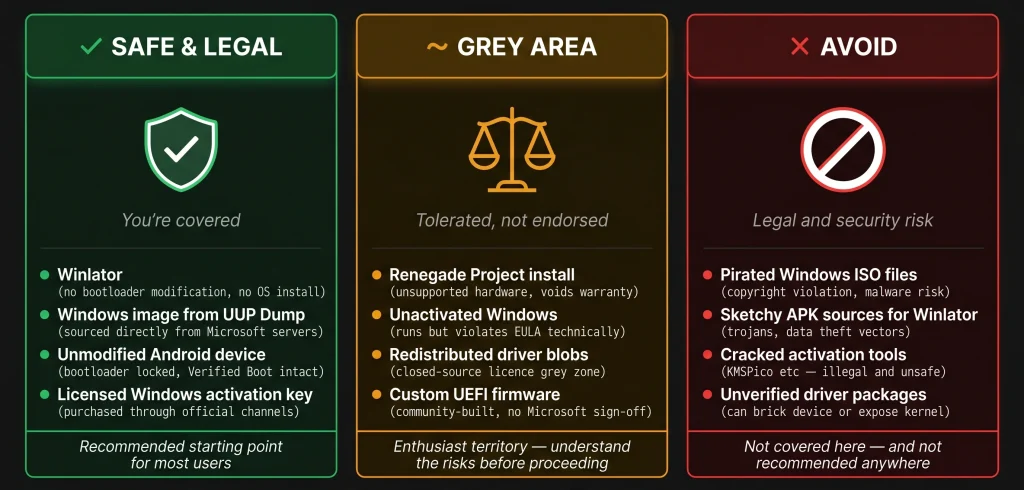
Windows licensing. Windows 10/11 ARM isn’t sold as a standalone retail product you can just buy and install wherever you want. Running it on unlicensed hardware sits in a grey area under Microsoft’s EULA. Microsoft has historically tolerated enthusiast experimentation and hasn’t pursued action against hobbyists — but that tolerance isn’t a legal right and running Windows unactivated is the honest reality for most people doing this.
Driver licensing. Some driver components extracted from Android firmware are covered by closed-source licences. Redistributing them is legally murky — the community navigates this by keeping certain blobs out of public repositories, but it’s worth knowing the grey area exists.
What we won’t suggest. Obtaining Windows images through unofficial channels to avoid licensing. UUP dump links directly to Microsoft’s own servers — that’s the legitimate route and it’s the only one worth using.
The Full Comparison: Which Method Is Right for You?
| Feature | Renegade Project | QEMU without KVM | QEMU with KVM | Winlator |
| What runs | Full Windows OS | Full Windows OS | Full Windows OS | Individual Windows apps |
| Performance | Near-native | Very slow | Near-native | Good for most apps |
| Root required? | Yes (bootloader unlock) | No | Yes (Magisk + KVM kernel) | No |
| Brick risk | High | None | Low | None |
| Setup difficulty | Very hard | Moderate | Hard | Easy |
| Hardware access | Direct (drivers needed) | Emulated virtual hardware | Emulated (KVM-accelerated CPU) | Not applicable |
| Best for | Repurposing old phones | Experimentation | Usable Windows on compatible devices | Running specific Windows programs |
Wrapping Up
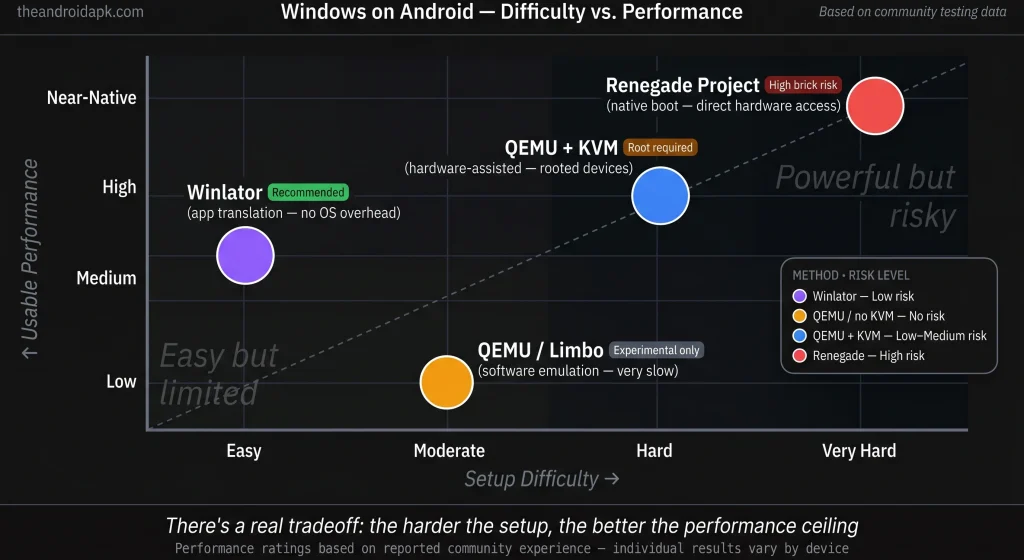
Running Windows on an Android phone went from theoretical curiosity to something you can actually do — and the gap between the three methods is enormous. Winlator is where most people should start: low friction, zero risk, works for a specific and practical need. QEMU with KVM is the middle path for rooted devices where you want a real Windows environment without committing to a full partition setup. The Renegade Project is for enthusiasts who know exactly what they’re doing and have a device they’re willing to experiment on.
None of these are ready to replace your laptop. But as Windows on ARM matures and Snapdragon chips keep getting faster, the gap is closing in ways that would have seemed unlikely five years ago.