apk
apk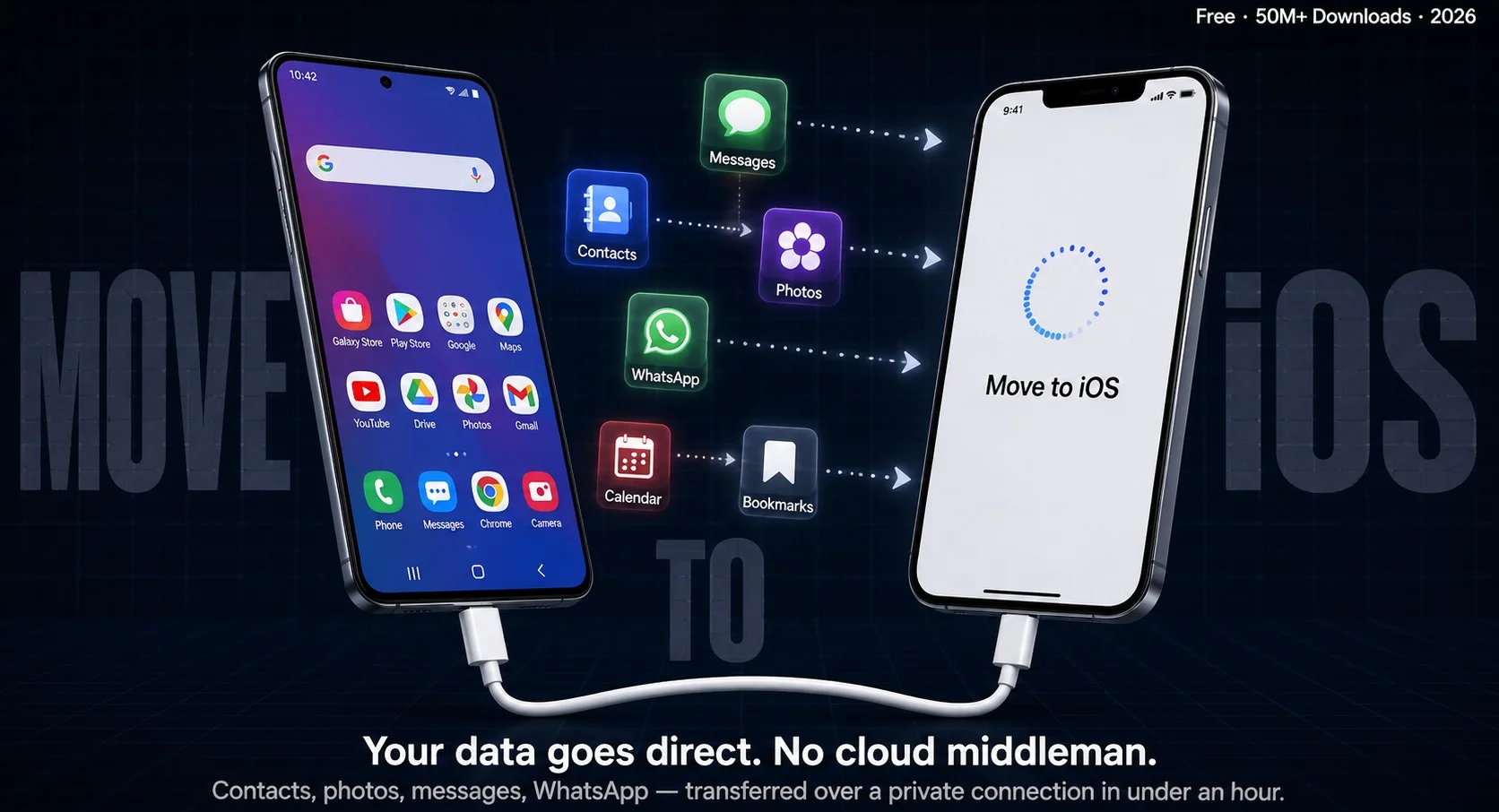
Apple’s free “Move to iOS” app handles the heavy lifting when you switch from Android to iPhone — contacts, photos, messages, even WhatsApp history. It’s not a perfect clone, but it’s the most reliable zero-cost method available. Here’s exactly how it works, what it can’t do and how to avoid the most common headaches.
What “Move to iOS” Actually Is
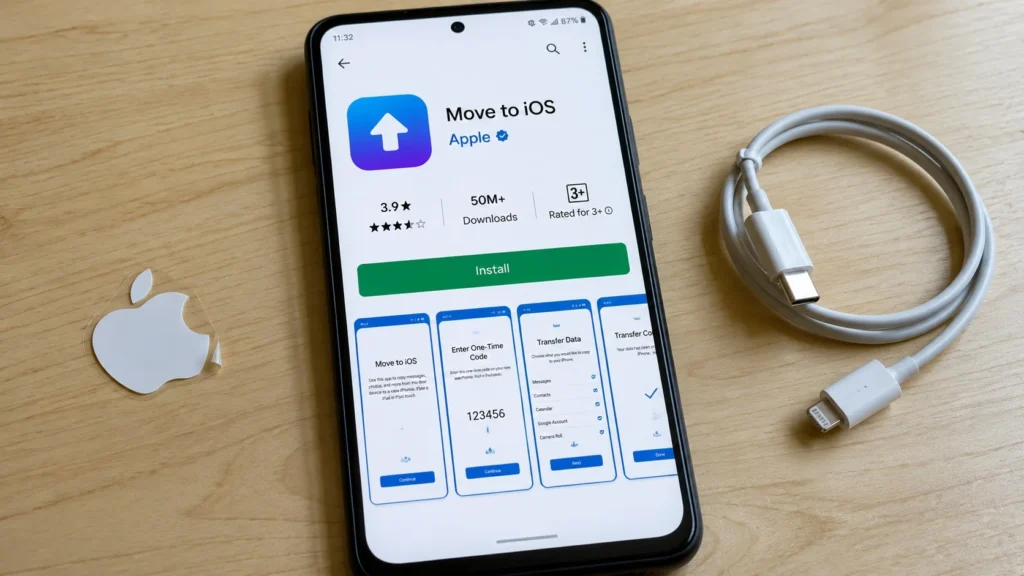
So you’ve decided to make the jump. First thing worth knowing — Apple built a dedicated Android app specifically for this. It’s called Move to iOS, it’s free on the Google Play Store and it’s been around since 2015. Over 50 million downloads, rated 3.9 stars — not perfect, but it gets the job done for most people.
The app works by creating a temporary private Wi-Fi connection between your Android and your new iPhone. No internet needed, no cloud middleman. Your data goes directly from one phone to the other. Since iOS 17, there’s also a wired option — plug the two phones together with a USB-C cable and the whole thing goes significantly faster.
Your Android needs to be running at least version 6.0 (Marshmallow). Your iPhone should ideally be on iOS 17 or newer for the best experience, though iOS 15.5+ works for most features including WhatsApp migration.
What Actually Transfers — And What Doesn’t
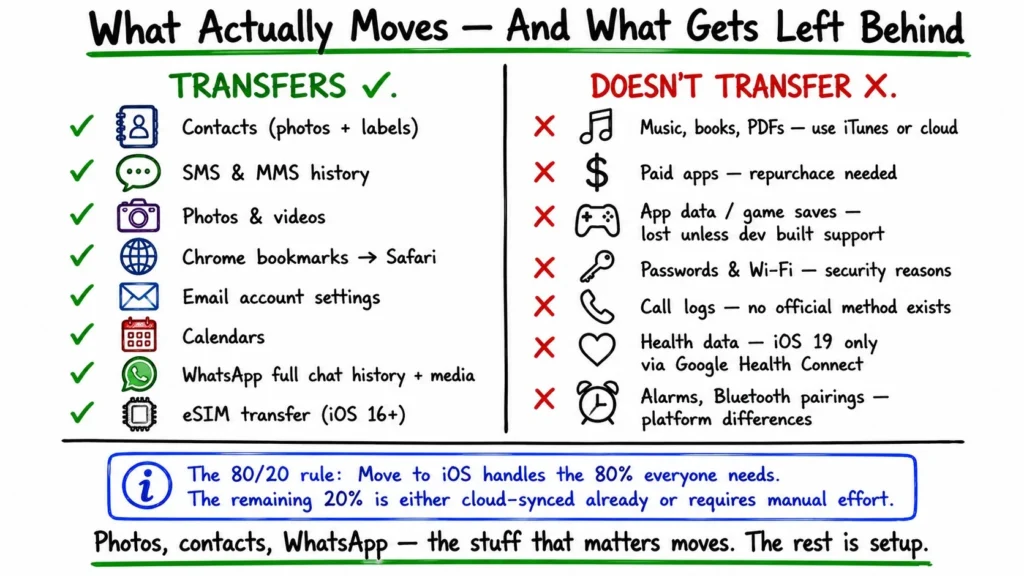
This is probably the most important section to read before you start. People get frustrated because they expect everything to come over. It doesn’t. But the stuff that matters most? Usually fine.
What moves over automatically:
- Contacts (including photos and custom labels).
- SMS and MMS message history.
- Camera photos and videos.
- Web bookmarks from Chrome → Safari.
- Email account settings (you’ll need to re-enter passwords).
- Google Calendar and local calendars.
- Free apps available on both stores — though app data only transfers if the developer specifically built support for it.
- WhatsApp full chat history including media (more on this below).
- eSIM transfer, if your carrier supports it (iOS 16+).
What doesn’t come over — and why:
| Data Type | Why It’s Left Behind |
| Music, books, PDFs | Apple expects iTunes/Finder or cloud services for these |
| Paid apps | Purchase history is store-specific; may need to repurchase |
| Most app data | Game saves, in-app settings — lost unless developer built API support |
| Passwords & Wi-Fi credentials | Security reasons; use iCloud Keychain or a password manager |
| Call logs | Not supported by Move to iOS — third-party tools needed |
| Health data | Indirect import possible via Google Health Connect (iOS 19 only) |
| Alarms, Bluetooth pairings | Platform differences make these non-transferable |
The call log thing catches people off guard. It’s genuinely annoying if you need that history. There’s no official fix — some third-party desktop apps claim to handle it, but results vary.
How the Transfer Actually Works (Step by Step)
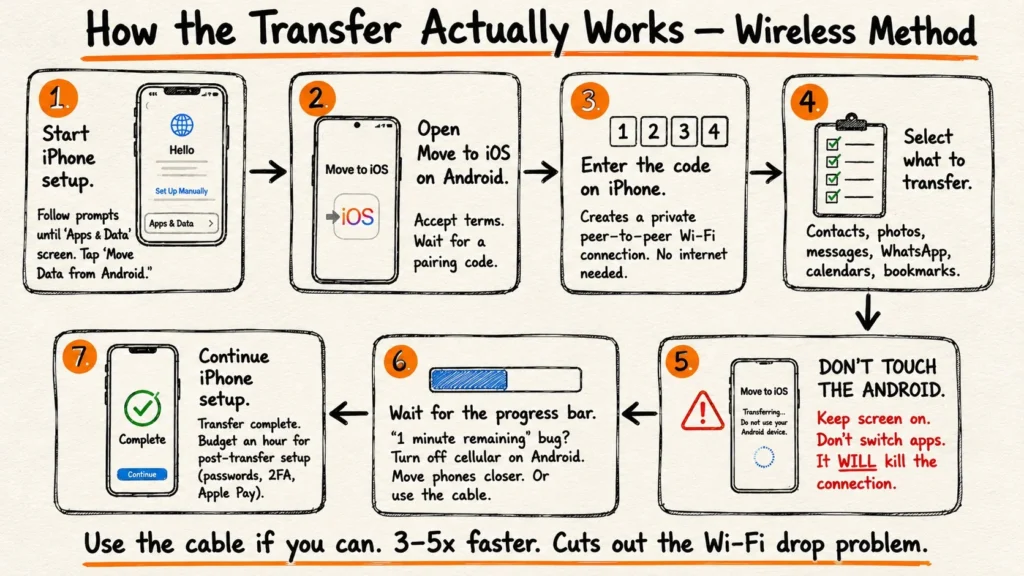
Two methods now — wireless and wired. Use the cable if you can. It’s 3 to 5 times faster for large photo libraries and cuts out the most common failure point: Wi-Fi dropping mid-transfer.
Before you start, check these:
- Both phones plugged into chargers (large transfers can take hours).
- Enough free storage on the iPhone — it needs more free space than the total size of what you’re moving.
- Bluetooth enabled on both devices.
- If you’re on a Xiaomi, Oppo or other heavily skinned Android — disable battery saver and turn off “Switch to mobile data” or “Wi-Fi+” settings. These aggressively kill background connections and will stall your transfer.
Wireless transfer:
- Turn on your new (or freshly erased) iPhone and follow setup until you hit the Apps & Data screen.
- Tap Move Data from Android.
- Open the Move to iOS app on Android, accept terms, wait for a code.
- Enter the code on your iPhone — this creates a private peer-to-peer Wi-Fi connection.
- Select what you want to transfer.
- Keep the screen on and don’t switch apps on Android — it will kill the connection.
- Wait for the progress bar to finish, then continue iPhone setup.
Wired transfer (iOS 17+, iPhone 15 or newer):
Same starting steps, but when the iPhone detects the cable connection it’ll offer a “Use Cable” option. Take it. Much faster, much more stable.
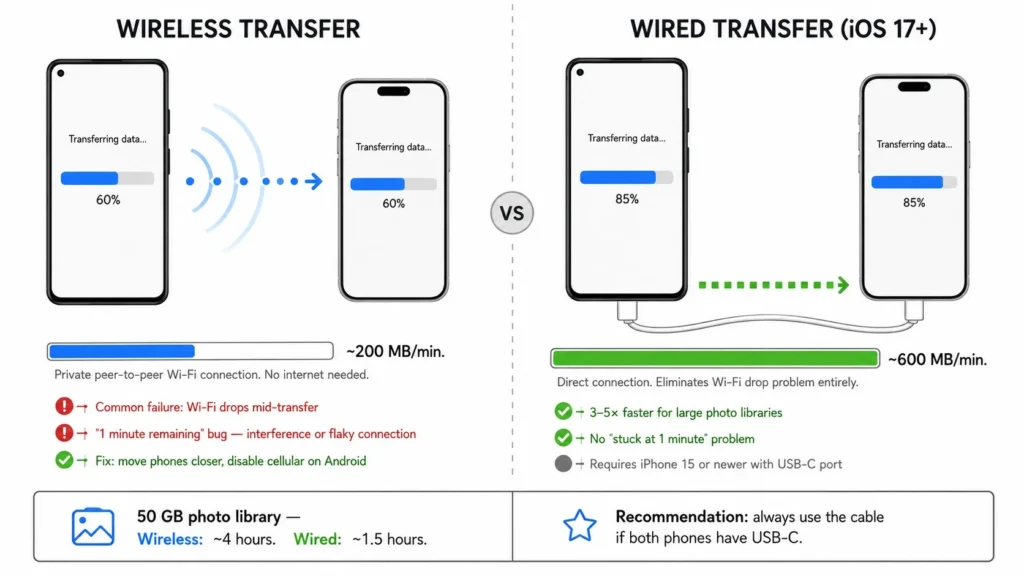
One thing that trips people up constantly — the Reddit community on r/iphone calls it “the 1 minute remaining bug.” The progress bar hits almost done and just… sits there. Usually means Wi-Fi interference or a flaky connection. Fix: switch to the cable method or turn off cellular data on Android and move the phones closer together.
The WhatsApp Migration — A Special Case Worth Understanding
For a lot of people, WhatsApp history is the dealbreaker. Losing years of conversations feels unacceptable. Good news — since 2022, Meta and Apple worked together to make this actually possible through Move to iOS. As of 2026 it works reliably, with a few conditions.
Requirements:
- Android 5.0 or higher.
- iOS 15.5 or higher.
- Latest version of WhatsApp on both phones.
- Same phone number on both devices.
- No VPN active during transfer.
- WhatsApp must NOT be set up on the iPhone yet — if it is, the migration will overwrite whatever’s already there.
How it works:
During the Move to iOS transfer, after you enter the pairing code, an option appears — “Transfer WhatsApp data.” Select it. The app creates an encrypted backup of your entire WhatsApp database and media, moves it to the iPhone and WhatsApp restores it automatically when you open it for the first time.
The encryption stays intact throughout. Your chats don’t pass through any server.
One real limitation: Huawei devices without Google Mobile Services struggle here. If you’re coming from a Huawei phone, the WhatsApp transfer may fail entirely. The workaround is messy — some users have had success with third-party desktop tools, but none are officially supported and they may break end-to-end encryption in the process.
After the Transfer — What Still Needs Your Attention
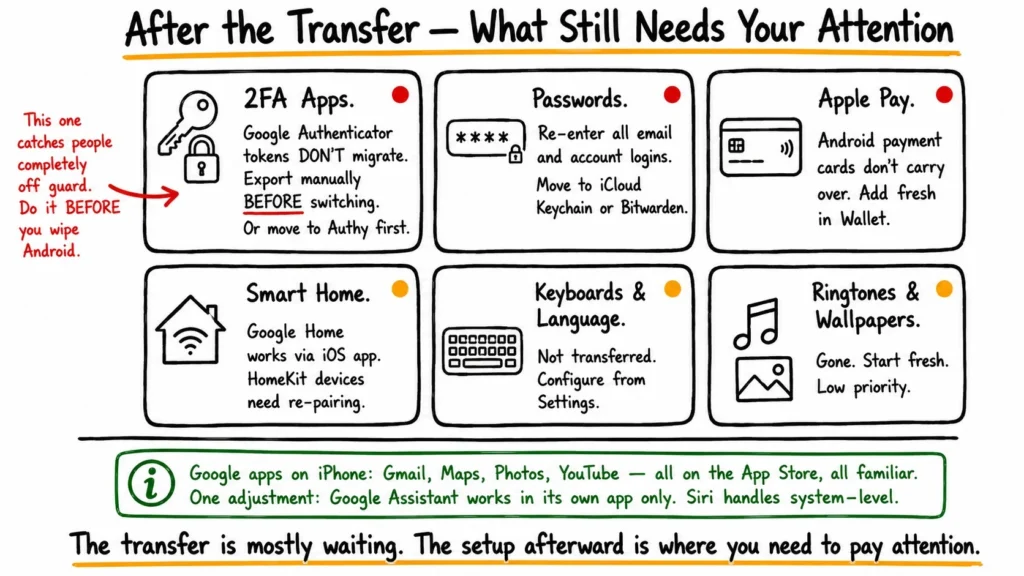
Move to iOS gets you most of the way there. But switching ecosystems isn’t just copying files — there’s a layer of setup that the app simply can’t handle. Budget maybe an hour for this part.
Things to set up manually after transfer:
- Passwords — Re-enter email passwords and any account logins. Consider moving to iCloud Keychain or a cross-platform manager like Bitwarden.
- Two-factor authentication apps — Google Authenticator tokens don’t migrate. Either export them manually before switching or move to a cross-platform 2FA app like Authy beforehand. This one catches people completely off guard.
- Apple Pay — Your Android payment cards don’t carry over. Add them fresh in Wallet.
- Smart home devices — Google Home gadgets still work via the iOS Google Home app, but Apple HomeKit devices need re-pairing.
- Ringtones and wallpapers — Gone. Start fresh.
- Keyboards and language settings — Not transferred. Configure from Settings.
What about Google apps?
Most of them work fine on iOS. Gmail, Google Maps, Google Photos, YouTube — all available on the App Store and they’ll feel familiar. The one adjustment: Google Assistant can’t be set as the system-wide default on iPhone the way it was on Android. Siri handles system-level stuff; Google Assistant works inside it’s own app.
Alternatives If Move to iOS Doesn’t Work for You
Sometimes it fails. Large libraries, unsupported Android skins, older devices — there are situations where the official tool just won’t cooperate. Here’s what else exists.
Cloud-based workarounds:
The simplest fallback for most data types is just signing into Google on your iPhone. Contacts, Gmail and Google Calendar sync automatically — no transfer needed at all. Google Photos is another easy win: if your Android photos were already backed up there, install the app on iPhone and everything’s waiting.
For documents and files, OneDrive or Dropbox both work cross-platform without any migration headaches.
Third-party desktop software:
Apps like AnyTrans, MobileTrans and Dr.Fone claim to transfer more data types — call logs, music, some app data. They cost money, require a PC or Mac and results depend heavily on your specific phones and iOS version. Use them as a last resort, not a first choice. Some require disabling encryption temporarily, which is worth thinking about before you hand over your data.
Manual transfer (the slow but reliable way):
- Contacts: Export as a VCF file from Android, email it to yourself, open it on iPhone.
- Calendars: Share as an ICS file.
- Photos/videos: Copy from Android via PC, sync through Finder or iTunes.
- SMS: No clean official method exists — third-party tools are needed and results are inconsistent.
As a Reddit thread on r/Android summarizes it pretty well — Move to iOS handles the 80% everyone needs. The remaining 20% is either cloud-synced already or requires manual effort regardless of which tool you use.
Quick Comparison: Transfer Methods at a Glance
| Method | Cost | Speed | What It Transfers | Best For |
| Move to iOS (wireless) | Free | Moderate | Core data + WhatsApp | Most users |
| Move to iOS (wired) | Free | Fast (3–5× wireless) | Same as above | Large photo libraries |
| Google Account sync | Free | Instant | Contacts, mail, calendar | Partial migration |
| Google Photos | Free | Depends on library size | Photos and videos only | Media-heavy users |
| Third-party desktop apps | Paid ($20–$40) | Moderate | More data types | Edge cases |
| Manual transfer | Free | Slow | Selective | Technical users |
Switching from Android to iPhone in 2026 is genuinely less painful than it used to be. The wired transfer alone was a meaningful upgrade — that “stuck at 1 minute” problem that plagued wireless transfers for years is mostly gone when you use a cable. WhatsApp migration working natively removed the last major friction point for a lot of people.
The honest advice: plug in both phones, use the cable, disable battery optimization on Android before you start and give yourself a quiet hour where you’re not rushing. The transfer itself is mostly waiting. The setup afterward is where you actually need to pay attention.