Chandio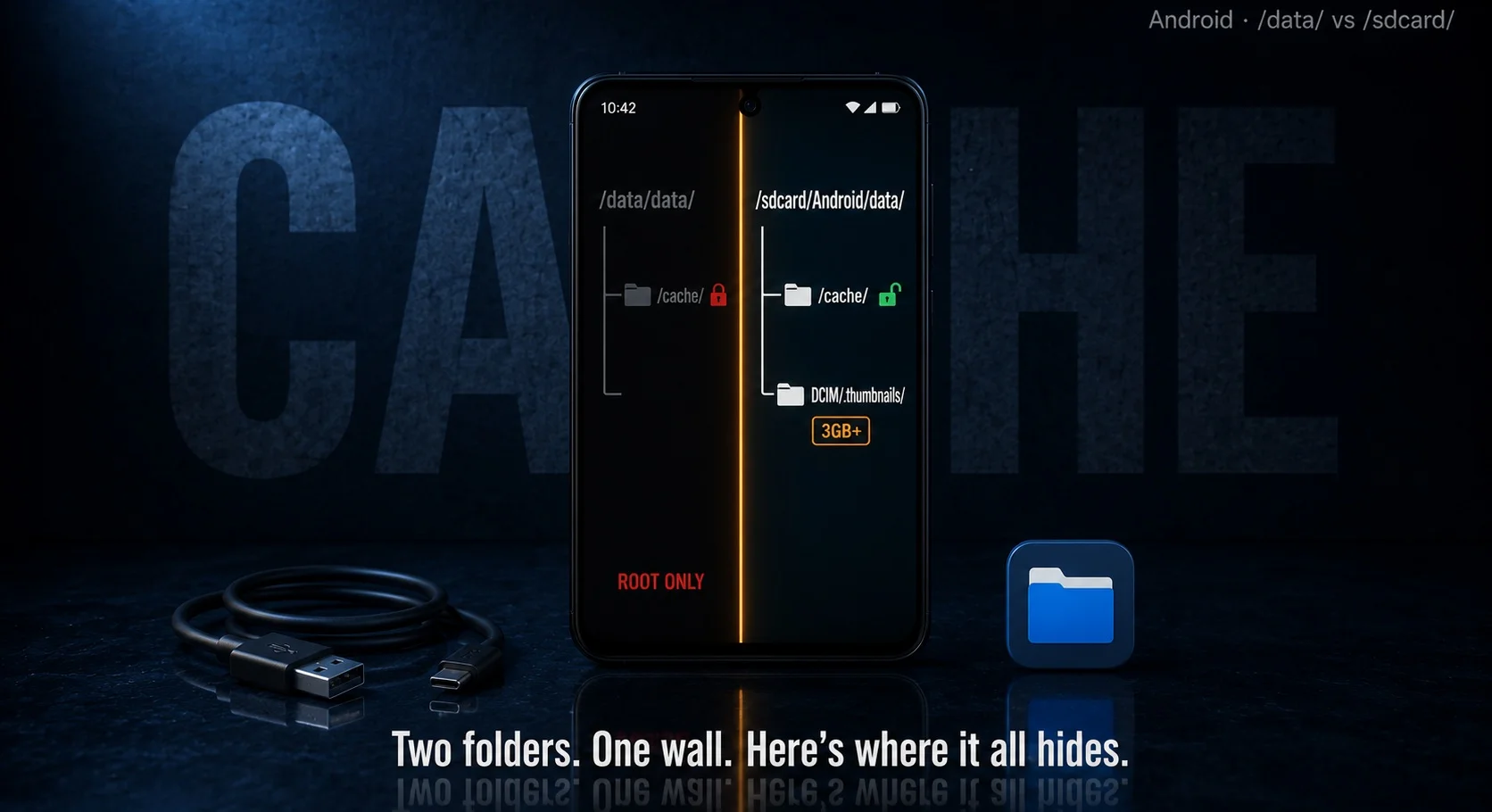
Cache is just the pile of temporary files apps stash to load faster and work offline — thumbnails, half-watched videos, web page bits, that kind of thing. Most of it lives in one of two places: a locked private folder each app owns or a more reachable shared folder you can poke around in. How deep you can go comes down to one thing — whether your phone is rooted. Without root you can still see sizes, clear caches and browse a good chunk of the external stuff. With root, the whole filesystem opens up.
Key takeaways
- Every app keeps a private cache at /data/data/<package>/cache/ — locked tight unless you’ve got root (or the app’s a debug build).
- A lot of apps also cache to shared storage at /sdcard/Android/data/<package>/cache/, which you can reach with a file manager.
- Since Android 11, that shared Android/data folder got walled off from regular file managers — Files by Google is your easiest way in.
- The giant space-eater most people miss is the thumbnail cache: .thumbdata files in DCIM/.thumbnails/, sometimes several GB.
- Settings → Apps → Storage shows you cache sizes and a Clear button, but never the actual files.
Where your cache hides at a glance
- Private app cache → /data/data/<package>/cache/ (root needed).
- Shared app cache → /sdcard/Android/data/<package>/cache/ (file manager).
- Thumbnail cache → /sdcard/DCIM/.thumbnails/ (show hidden files).
- Browser/WebView cache → inside the app’s private folder (root needed).
- Legacy /cache partition → mostly gone on modern phones (root only).
Where Android Actually Hides It’s Cache
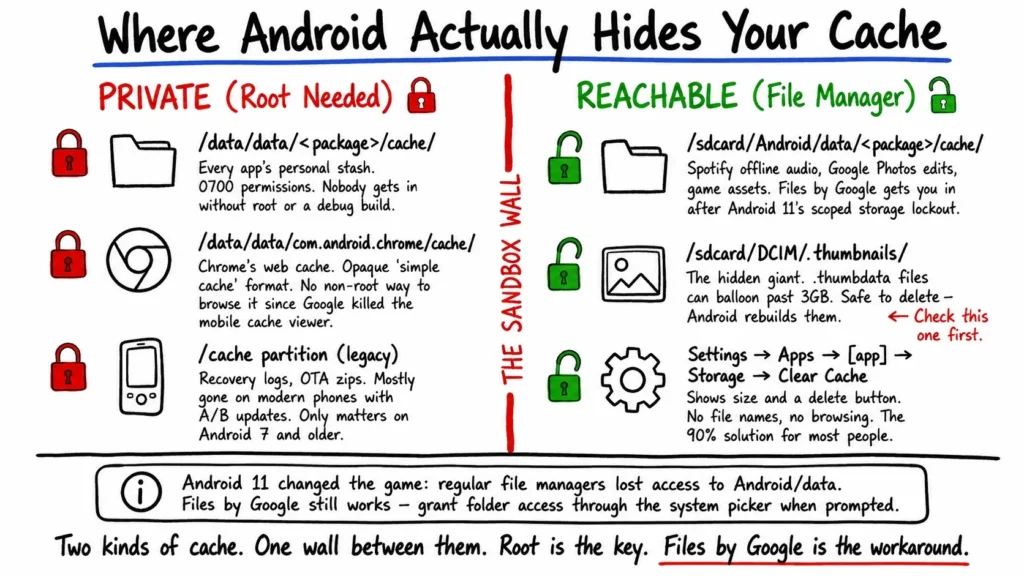
So here’s the mental model that makes all of this click — Android keeps two kinds of cache and the difference is the whole story. There’s the private stuff, tucked inside each app’s own sandbox at /data/data/<package name>/cache/ and that folder is locked down hard. It’s owned by the app’s own Linux user with 0700 permissions, which is a fancy way of saying nobody but that app gets in — not other apps, not a file manager, not even ADB running as the normal shell user. That’s by design and it’s a privacy feature, not an obstacle someone forgot to remove.
Then there’s the friendlier kind — external cache, sitting on shared storage at /sdcard/Android/data/<package>/cache/. Spotify drops it’s offline audio cache here, Google Photos parks edit data, plenty of games stash assets here too. This is the cache you can realistically get your hands on without doing anything drastic. If you want the textbook backstory on why any of this exists, Wikipedia’s entry on cache in computing is a solid five-minute read — the short version is it’s all about not re-fetching or re-computing something you already had.
One more spot worth knowing about, because it’s usually the single biggest chunk of “cache” on a phone and almost nobody looks for it — the thumbnail cache. Android’s media scanner generates these .thumbdata files in DCIM/.thumbnails/ and I’ve personally watched one balloon past 3GB on a phone with a heavy photo library. Safe to delete, by the way — Android just rebuilds it.
Finding Cache Without Root: The Simple Path
Most people don’t have root and the good news is you can still do plenty. The dead-simplest route, if you just want to clear cache and not browse files, is right there in Settings → Apps → [your app] → Storage & cache. It shows the size — say, 245 MB sitting in Chrome — and a Clear Cache button. That’s it. No file names, no picking and choosing, just the bulk number and a delete.
When you actually want to see the files, you need a file manager and here’s where Android 11 threw a wrench in things. Before Android 11, any file manager could stroll into Android/data and read whatever it wanted. After it, Google’s scoped storage rules slammed that door — direct access to Android/data and Android/obb got blocked for normal apps. (That link’s the official Android source; it’s developer.android.com, which is the platform’s own documentation rather than a random commercial site.)
The workaround that still holds up: Files by Google. Browse to Internal Storage → Android → data and it’ll prompt you to grant access to the folder through the system picker — accept that and you’re in. From there you can open any app’s package folder, drop into it’s cache subfolder and finally see the real images, JSON and temp media. A thread or two over on r/Android is where I first saw people piece together that Files by Google quietly kept this access while third-party managers lost it — community knowledge running ahead of the official docs, as usual. Just remember the catch: this only works for apps that cache externally. Anything keeping it’s cache in the private /data/data/ area stays invisible here.
Squeezing More Out of ADB (No Root Required)
If you’re comfortable plugging into a computer, ADB opens a few doors that a file manager can’t — with honest limits. The headline catch: as a normal shell user, ADB still can’t read /data/data/<app>/cache/, same permission wall as everything else. But there’s a real exception and it’s the one developers lean on constantly — if an app is a debug build (android:debuggable=”true”), you can climb into it’s sandbox with run-as:
- adb shell
- run-as com.example.app
- cd cache
- ls -la
To actually pull a file out, copy it somewhere world-readable first, then grab it:
- run-as com.example.app cp cache/image.jpg /sdcard/
- adb pull /sdcard/image.jpg
That only works on apps you can build or that ship debuggable — which in practice means your own apps, not Instagram. For everything else there used to be adb backup -f backup.ab –noapk <package>, which dumps an app’s data into a .ab file you crack open with Android Backup Extractor. I’ll be straight with you though — this one’s mostly a museum piece now. Most apps set allowBackup=”false”, newer Android versions block it harder every release and you’ll spend more time fighting it than getting data. Worth knowing it exists, not worth relying on.
What Root Actually Unlocks
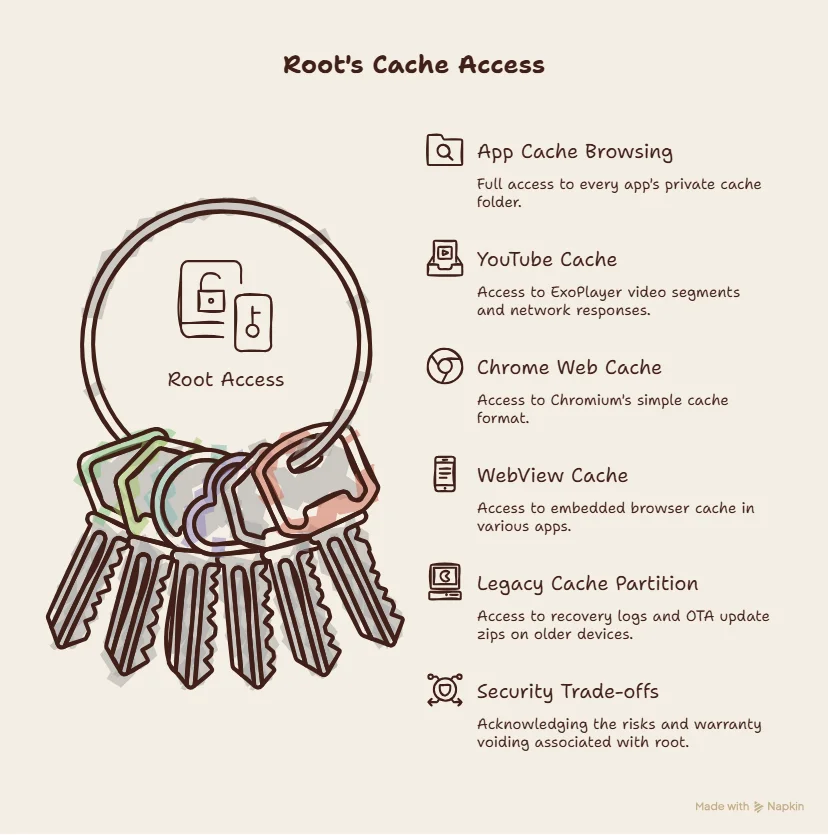
Here’s the honest trade-off — root flips every one of these problems off at once, at the cost of your phone’s security model and usually your warranty. With a root file manager (Solid Explorer’s root add-on, MiXplorer, Root Explorer) you just walk into /data/data/, open any package and there’s the cache — sizes, timestamps, the works. Inside YouTube’s folder you’ll spot things like exo/ (that’s ExoPlayer’s video cache), image_manager_disk_cache/, an okhttp folder for network responses. It’s all just sitting there.
Browsers are the big one people come looking for. Chrome’s web cache lives at /data/data/com.android.chrome/cache/ in Chromium’s “simple cache” format — opaque files named data_0, f_000001, an index — and there’s genuinely no non-root way to browse it anymore, since the old chrome://net-internals cache viewer got pulled on mobile. Any in-app browser (a Reddit client, say) tucks it’s WebView cache at /data/data/<host>/app_webview/Cache/. Root and only root, gets you in.
There’s also the legacy /cache partition — on older phones (roughly Android 7 and back) it held recovery logs and OTA update zips. On any modern device with seamless A/B updates it’s basically vanished, so don’t go hunting for it unless you’ve got an older handset. If it’s there, su -c “ls /cache” shows you what’s inside.
One Thing Before You Go Digging
Quick, sincere note — everything above is about your own device. Reading another app’s private cache is for debugging apps you wrote, freeing up storage or just satisfying curiosity about your own phone — not for prying into anything that isn’t yours. The sandbox you keep bumping into isn’t Android being difficult, it’s the thing protecting your data from every other app too. Worth respecting it even when you’ve got the keys to get around it.
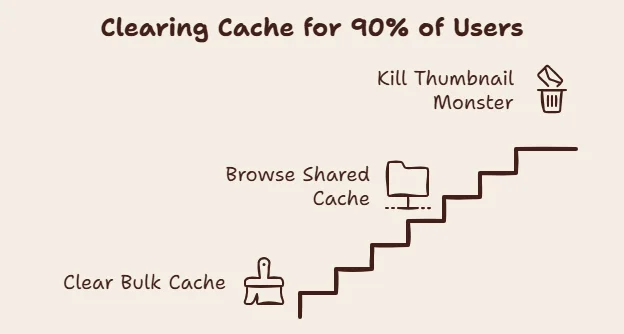
And the genuinely useful 90% takeaway for most people: you almost never need root. Clear bulk cache in Settings, browse the reachable stuff with Files by Google and nuke that .thumbdata monster in DCIM/.thumbnails/ when storage gets tight. That covers nearly everything a normal person is actually after.