 Rafael Weiss ( Androind Engineer )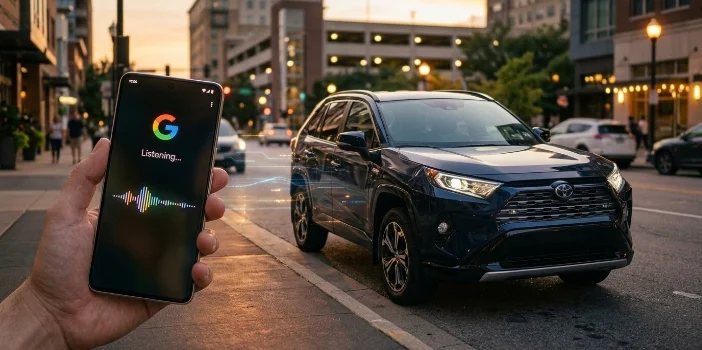
My neighbor called me last winter, genuinely amazed. She’d just unlocked her RAV4 from inside her house because her kid was sitting in the cold driveway. Didn’t walk out, didn’t dig for keys — just talked to her phone. That’s the kind of thing that sounds like a gimmick until it saves you on a Tuesday.
If you’ve got a Toyota and an Android phone, you can actually do this. Lock it, unlock it, start the engine, check if you left the windows open — all through voice.
What You Actually Need Before Anything Works
Skip this part and you’ll spend an hour confused. The setup has real prerequisites and Toyota isn’t shy about the paywall.
The vehicle side:
- 2018 model year or newer, generally — but trim matters too. An “Audio Plus” or “Premium Audio” system needs to be in the car. Same model, different trim, different result. Worth checking Toyota’s official compatibility page or just calling your dealer.
- The car needs cellular connectivity built in — it’s how remote commands reach it.
The phone side:
- Toyota app installed on your Android device — this is non-negotiable, it’s the bridge between your voice and your car.
- A linked Toyota Owner account.
The subscription:
This is where people get surprised. The feature runs through Toyota’s Remote Connect service — and it’s not free forever.
| Plan Stage | What You Get |
| New vehicle trial | Usually up to 1 year free |
| After trial expires | Paid subscription required |
| No active subscription | Remote commands stop working |
Reddit threads are full of people who set everything up perfectly and then wondered why it stopped working six months later — here’s one good example of that exact conversation. The subscription lapse is almost always why.
Google Assistant Method — This Is the Main One
This is what most people mean when they talk about controlling their Toyota with voice. You’re not doing it from inside the car — you’re doing it from your couch, your office, wherever.
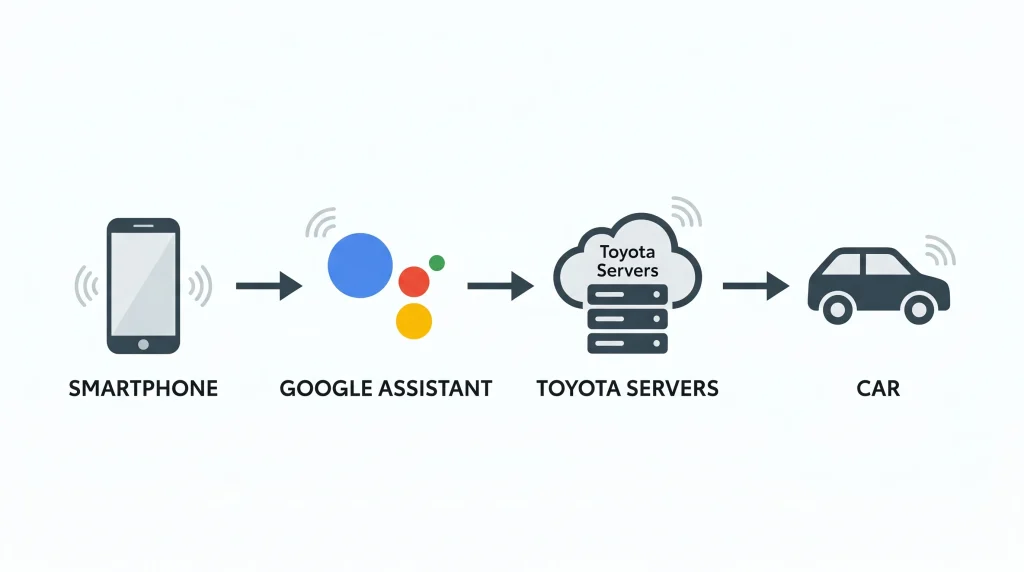
The way it works: your Google Assistant account gets linked to your Toyota account. When you give a voice command, Assistant talks to Toyota’s servers, which talk to your car. There’s a PIN involved for anything security-sensitive, which makes sense — you probably don’t want “unlock my car” to work without some friction.
Linking It Up — Step by Step
- Open the Toyota app, make sure your vehicle is added via VIN and confirm Remote Connect is active.
- Go into Google Assistant on your phone.
- Search for the Toyota Action and enable it.
- Log in with your Toyota credentials when prompted.
- Set a 4-digit security PIN — you’ll say this out loud when giving lock/unlock or start commands.
That PIN step trips people up. It feels weird saying numbers out loud in a parking lot but it’s there for good reason — Wikipedia’s overview of voice assistant security covers why voice-activated access to physical spaces needs that kind of layer.
Commands That Actually Work
| What You Want | What You Say |
| Lock doors | “Hey Google, ask Toyota to lock my car doors” |
| Unlock doors | “Hey Google, ask Toyota to unlock my doors” |
| Start engine | “Hey Google, ask Toyota to start my car” |
| Check door status | “Hey Google, are my car doors locked?” |
| Fuel level | “Hey Google, how much gas is in my car?” |
| Window status | “Hey Google, ask Toyota if my windows are open” |
| Odometer | “Hey Google, ask Toyota how many miles are on my car” |
Android Auto — Useful, But Not What You Think
People see “Android Auto” and assume it covers everything voice-related with their car. It doesn’t — and this distinction matters before you go downloading apps expecting to unlock doors from your driveway.
Android Auto is for when you’re already in the car. It mirrors a simplified version of your phone onto the dashboard screen — navigation, calls, messages, music. That’s genuinely useful. But it’s voice control over actual vehicle hardware like door locks? Limited. Like, really limited.
So if someone’s Googling “Android Auto unlock Toyota” expecting a remote solution — that’s the wrong tool. Google Assistant with the Toyota app is the remote answer. Android Auto is the in-cabin assistant.
Still worth setting up though, especially if you use your car for longer drives and want hands-free everything once you’re inside.
Getting it running:
- Download Android Auto from the Google Play Store if it’s not already on your phone.
- First connection needs a USB cable — plug into your car’s USB port and follow the prompts on both screens.
- After that initial wired setup, wireless Android Auto kicks in automatically on supported vehicles.
- Once connected, activate Assistant by holding the voice button on your steering wheel or just say “Hey Google”.
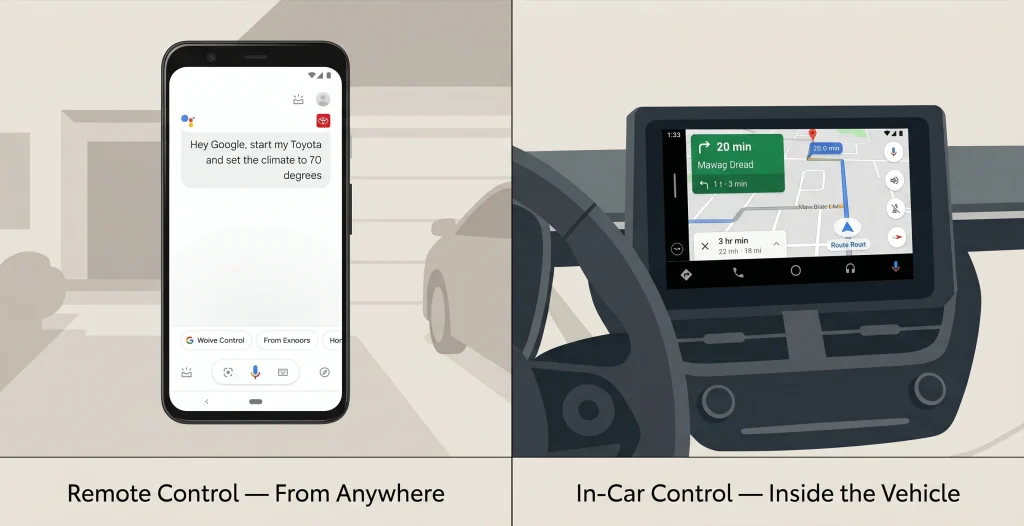
What Android Auto is actually good for:
- Turn-by-turn navigation without touching your phone.
- Hands-free calls and text replies.
- Spotify, podcasts, any audio — all voice controlled.
- Quick status checks if your specific model supports them.
One thing worth knowing — Wikipedia’s Android Auto page has a decent breakdown of which features vary by vehicle manufacturer, because Toyota’s implementation isn’t identical to what you’d get in a Honda or a Ford. Small differences, but real ones.
The Smartwatch Angle — Actually Underrated
This one doesn’t get enough attention and honestly it should, because it solves a specific problem really well.
Wear OS smartwatch on your wrist — Galaxy Watch, Pixel Watch, whatever you’ve got — paired with the Toyota companion app. You can lock, unlock and start your car from your wrist without pulling your phone out at all.
Think about when that actually matters. Hands full. Phone buried in a bag. Kids running in three directions in a parking lot. Wrist tap, done.
Setup is straightforward if you already have the Toyota app running on your phone — the watch app connects through it, so the hard work is already done. Just install the Toyota companion app on your watch through the Play Store’s Wear OS section.
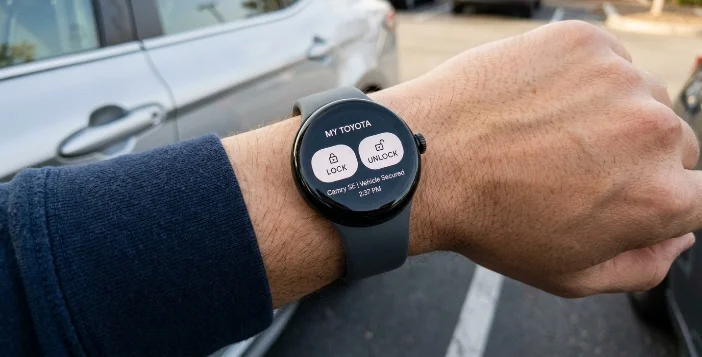
A few things to keep in mind:
- Your phone still needs to be nearby — the watch routes commands through it
- Same Remote Connect subscription requirement applies
- Not every Wear OS watch handles it identically — this Quora thread has some real user experiences worth skimming if you’re troubleshooting pairing issues
It’s a small quality-of-life thing but once you’ve used it a couple times it becomes the default. Fishing for your phone starts feeling unnecessarily complicated.
“Hey Toyota” — The Native Assistant Worth Knowing About
So while Google Assistant handles the remote stuff from your phone, Toyota’s been quietly building something on the vehicle side itself. Newer models are rolling out a native voice assistant — just say “Hey Toyota” and the car responds directly, no phone needed.
It’s not trying to replace Google Assistant. Different job entirely.
“Hey Toyota” lives inside the car’s own system. Climate control, navigation, audio — things you’d normally poke at the touchscreen for while driving. That’s it’s lane. The idea is a more natural back-and-forth with the car itself rather than issuing rigid commands.
The honest caveat though — coverage is patchy right now. “Some newer models” is genuinely vague and Toyota hasn’t made a clean public list of exactly which trims have it fully enabled. If you’re buying new and this matters to you, ask the dealer specifically before signing anything. Don’t assume.
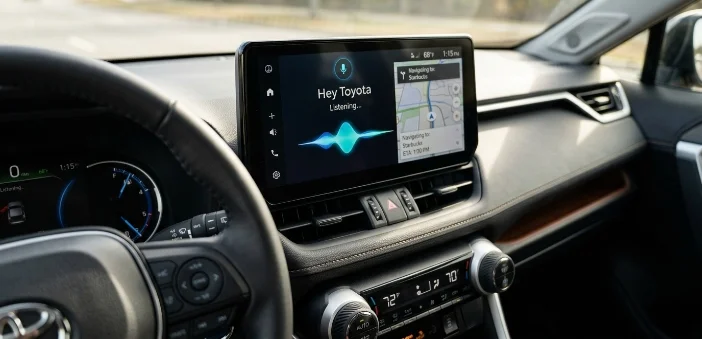
What it handles well:
- “Hey Toyota, set temperature to 70”.
- “Hey Toyota, navigate home”.
- “Hey Toyota, turn on seat heating”.
- General audio and display adjustments.
What it doesn’t do — at least not yet — is replace the remote commands. You still need Google Assistant and the Toyota app for locking doors from your kitchen.
When It Breaks — Real Troubleshooting
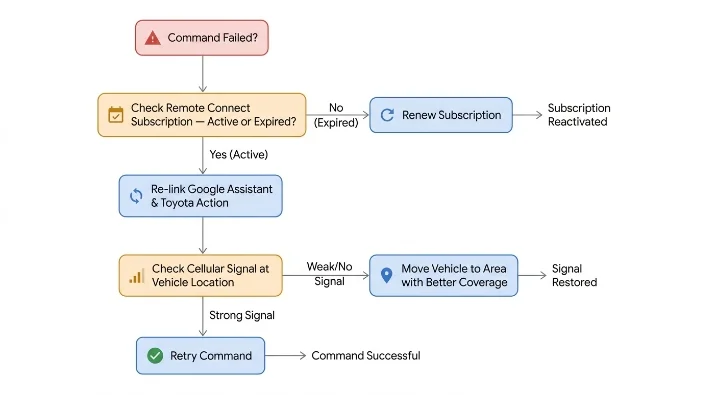
Everything works great in demos. Real life has bad cellular spots, expired tokens and app updates that quietly break integrations. Here’s what actually goes wrong and how to fix it.
Remote Command Just Fails
Nine times out of ten this is either the subscription lapsed or the Google Assistant and Toyota link needs refreshing. Check your Remote Connect status in the Toyota app first — seriously, check this before anything else. If that’s fine, go into Google Assistant settings, find the Toyota Action and re-link it. Takes two minutes.
PIN Not Being Accepted
Say it clearly, one digit at a time if needed. Background noise confuses Assistant more than people expect. Also double-check you’re using the PIN you set during Toyota Action setup — it’s separate from your Toyota account password.
Car Not Responding But App Shows Connected
Cellular coverage at the vehicle’s location. The car needs signal to receive commands — underground parking, rural spots, certain garages can all cause this. Nothing to fix on your end, just move the car or wait.
Android Auto Not Connecting
Start wired, always. Wireless connection needs that first wired handshake on most vehicles. If it was working and suddenly stopped, a quick USB reconnect usually resets it. Also worth checking that Android Auto has the necessary permissions in your phone’s app settings — location and notifications especially.
App Feels Buggy Generally
Update it. Toyota’s app has had rough patches with certain Android versions and the fix is almost always just running the latest version. Google Play’s app update page sounds obvious but a surprising number of people have auto-updates off.
Quick Comparison — Which Method Does What
Before wrapping up, this clears up the confusion fast:
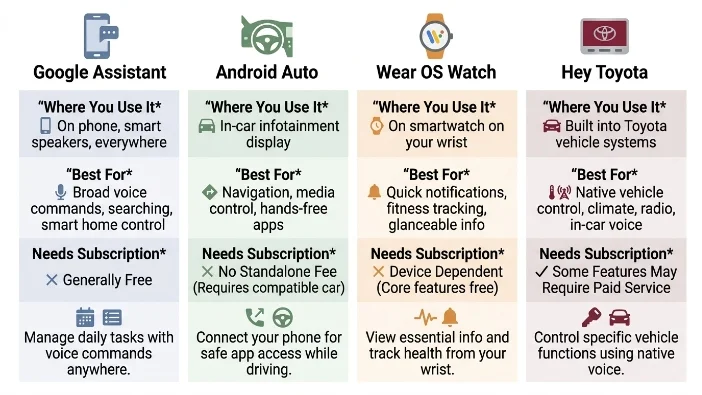
| Method | Where You Use It | Best For | Needs Subscription |
| Google Assistant + Toyota App | Anywhere, remotely | Lock/unlock, start, status checks | Yes |
| Android Auto | Inside the car only | Navigation, calls, media | No |
| Wear OS Watch | Anywhere within phone range | Hands-free without grabbing phone | Yes |
| Hey Toyota | Inside the car only | Climate, navigation, audio | Varies by model |
Setting It All Up — The Right Order
People sometimes jump straight to Google Assistant and skip the Toyota app setup, then wonder why nothing’s connecting. Order matters here.
Do this first, everything else second:
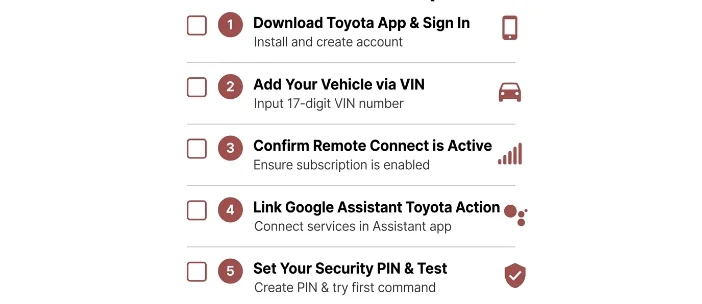
- Download the Toyota app and create or log into your Toyota Owner account.
- Add your vehicle using the VIN — it’s on your dashboard, driver’s side, visible through the windshield.
- Confirm Remote Connect is active — trial or paid, doesn’t matter, just needs to be on.
- Only then open Google Assistant and search for the Toyota Action.
- Link accounts, set your PIN, test with a simple status check before trying locks or engine start.
That status check step is underrated. “Hey Google, ask Toyota if my doors are locked” — if that works, everything’s wired up correctly. If it doesn’t, something in the chain is broken and you’ll know before you’re standing in a parking lot expecting it to work.
For Android Auto, do the wired connection first even if your car supports wireless. Just gets it sorted cleanly without fussing over why wireless isn’t pairing.
Wear OS watch last — it builds on the phone setup anyway, so there’s nothing to do there until the Toyota app is fully running.
Honestly, Is It Worth Setting Up?
Short answer — yes, but with realistic expectations.
The Google Assistant remote control is genuinely useful. Not in a novelty way, in a “I use this three times a week” way once it’s part of your routine. Checking if you locked the car without going back downstairs. Starting it in winter before you leave. Letting someone into the car while you’re inside. These are real situations, not edge cases.
Android Auto is worth having regardless — it’s just safer driving. Fewer reasons to touch your phone while moving.
The watch integration is niche but if you’re already wearing a Wear OS watch it takes ten minutes to set up and you’ll use it more than you expect.
“Hey Toyota” is promising but still maturing. Keep an eye on it as Toyota pushes updates — Toyota’s newsroom occasionally drops feature rollout announcements worth following if you want to know when your specific model gets it.
One thing nobody mentions enough — this stuff works better when you maintain it. Re-link Google Assistant every few months even if it hasn’t broken. Keep the Toyota app updated. These integrations quietly degrade otherwise and you only notice when you actually need them.
Final Word
Voice control for your car isn’t science fiction anymore, it’s just Tuesday. The technology’s there, the setup is manageable and once it clicks into place it’s one of those things you forget wasn’t always possible.
If you’ve already got this running on your Toyota — or you tried and hit a wall somewhere — drop it in the comments. Specifically which model and what broke, because that stuff helps other people more than any troubleshooting guide does.
And if you’re on the fence about the Remote Connect subscription after the trial ends — try the free period properly first. Actually use it, build the habit, then decide. Most people who cancel it miss it within a month.