Aliona Miller
If someone told you your phone has a “content manager,” you might picture some corporate IT guy hovering over your device. Not quite. On Android, a content manager is basically any tool — built-in or third-party — that helps you organize, access, and control your digital files. Photos, documents, work data, cloud storage — all of it. Some are simple file browsers. Others are full-blown enterprise security systems. Depends entirely on what you need it for.
It’s Not Just One App — It’s a Category
This trips people up. There’s no single app called “Content Manager” that ships with every Android phone. Instead, it’s an umbrella term covering a whole range of tools.
Think of your phone’s storage like a messy apartment. A content manager is whatever system you use to keep it livable — whether that’s a basic drawer organizer or a full home-renovation crew.
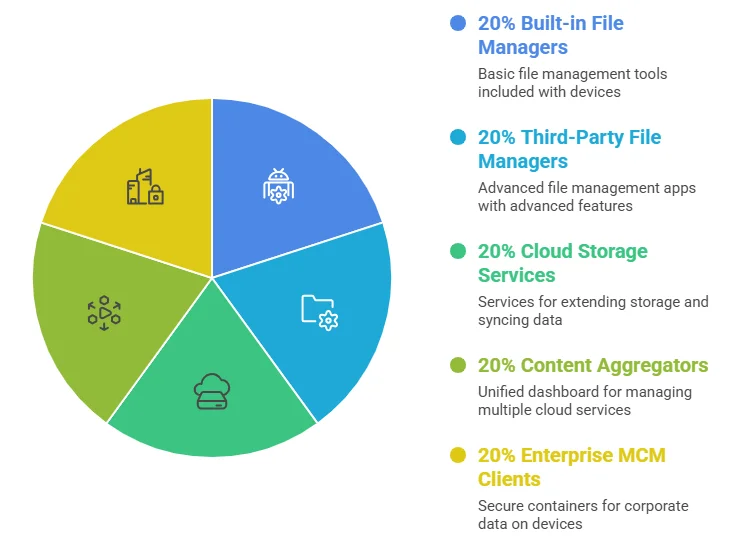
Android being Android (open, flexible, sometimes chaotic), you’ve got options across a pretty wide spectrum:
Two broad categories cover most of what you’ll encounter:
| Type | What It Does | Who Uses It |
| Personal / File Manager | Browse, sort, move, delete files — photos, videos, docs | Everyday Android users |
| Enterprise MCM Client | Locks down corporate data in a secure container on your device | Businesses, IT departments |
Most people only ever deal with the first type. But if your company handed you a work phone — or told you to install something on your personal one — you’ve probably bumped into the second without realizing it.
Personal Content Managers: The Everyday Kind
Four sub-types here, and they all solve slightly different problems.
Built-in File Managers
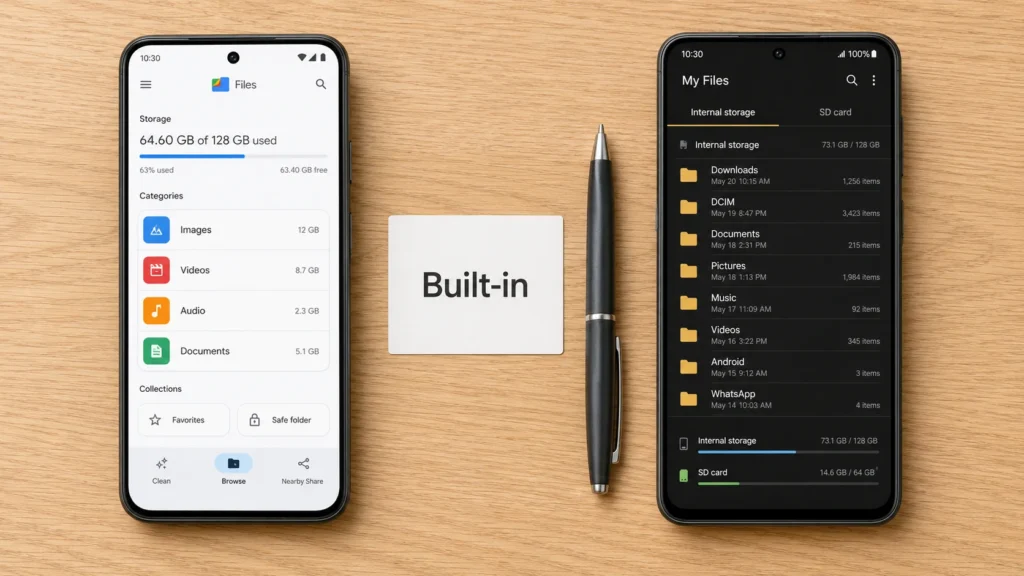
Every Android device ships with one. Files by Google comes on stock Android. Samsung ships My Files with Galaxy devices. They handle the basics — browsing folders, clearing out old downloads, moving stuff around.
Quick breakdown of the most common ones:
- Files by Google — Clean interface, built-in junk cleaner, offline file sharing via Nearby Share. Good for most people.
- Samsung My Files — Deeper integration on Galaxy hardware, better for managing internal vs. SD card storage side by side.
- Xiaomi / MIUI File Manager — Ships on Xiaomi devices, handles cloud and local in one view.
- OPPO File Manager — Similar deal, baked into ColorOS.
None of them are spectacular. They do the job. Where things get interesting is when you go third-party.
Third-Party Apps
This is where Android’s openness actually shines. Apps like Solid Explorer or MiXplorer give you dual-pane browsing, FTP access, encrypted vaults, the works. Stuff iOS users simply can’t do at the system level — at least not without serious workarounds.
Cloud Storage Services as Content Managers
Google Drive, Dropbox, OneDrive — these count too. They extend your storage, auto-sync files, and let you pull documents from any device. Practically speaking, a lot of people use Drive as their primary content manager without ever thinking of it that way.
Content Aggregators
Less common but worth knowing. Some apps create a unified view of everything — files across multiple cloud services, local storage, even connected devices — without copying data anywhere. One dashboard, everything visible. McAfee had a product in this space for a while before discontinuing it.
Enterprise Content Managers: The Serious Side of Android
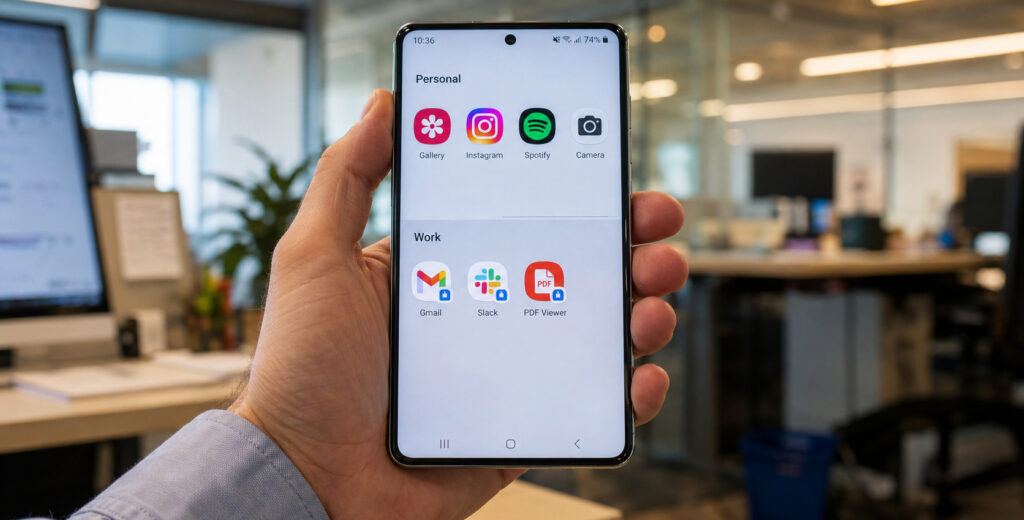
Most Android users never touch this stuff. But if you work for a mid-to-large company, there’s a decent chance it’s already running on your device — quietly.
Enterprise content managers on Android fall under a category called Mobile Content Management (MCM) clients. The job? Make sure corporate data stays corporate. Your IT department can push documents to your phone, control who sees what, and — if your device gets lost or you quit — wipe the work data without touching your personal photos or apps.
That last part matters more than people realize.
How containerization actually works
Instead of mixing your Netflix account and your company’s confidential spreadsheets on the same device, MCM clients create an encrypted “container.” Think of it as a locked briefcase living inside your phone. IT controls what goes in, who opens it, and when it gets destroyed.
Key things IT teams can enforce through MCM:
- Data encryption — Files inside the container are encrypted at rest.
- Multi-factor authentication (MFA) — Can’t open the work container without verifying identity.
- Role-based access control (RBAC) — A junior employee sees different files than a department head.
- Remote wipe — Corporate data deleted instantly if device is reported lost or employee leaves.
- App restrictions — Prevent copy-pasting from work apps into personal ones.
Samsung Knox: A Real-World Example
Samsung Knox is probably the most recognizable name in Android enterprise security. It’s not an app you download — it’s baked directly into Samsung hardware at the chip level. Galaxy phones ship with it built in.
Here’s a real-world scenario. Say a hospital gives its nurses Samsung Galaxy phones. Patient records, medication schedules, internal communications — all sensitive stuff. Knox creates a hardened workspace on each device. The nurse’s personal Instagram and work data never interact. If a phone goes missing on a ward, IT remotely wipes just the Knox container. Personal data stays untouched.
According to Samsung’s official Knox documentation, the platform meets security standards required by governments and defense agencies across multiple countries — not just hospitals.
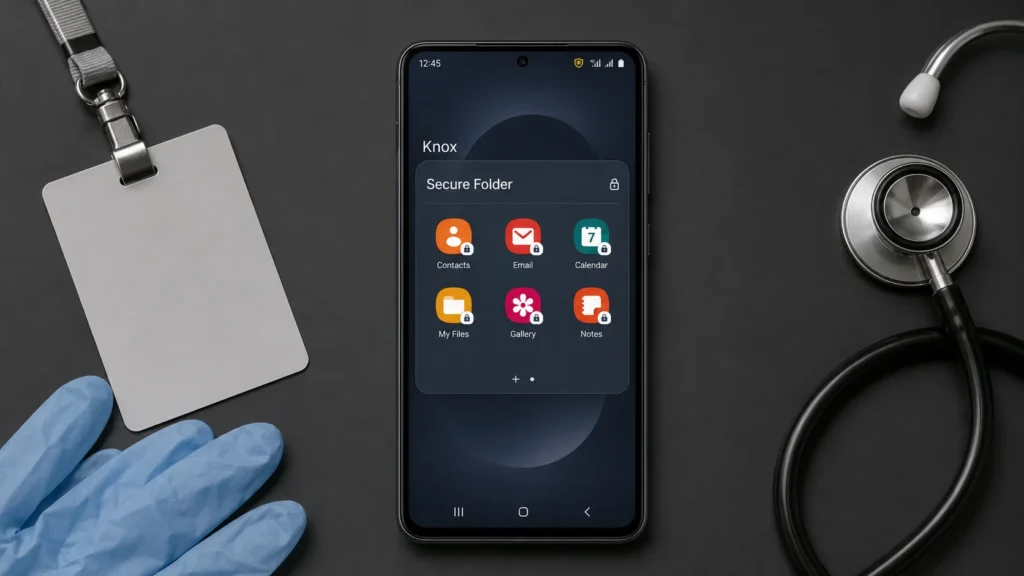
For non-Samsung devices, other MCM solutions fill the gap — Microsoft Intune, VMware Workspace ONE, and similar platforms work across a broader range of Android hardware through Android’s Enterprise management APIs.
Android vs. iOS: Why Openness Is Actually an Advantage Here
Quick comparison — not to drag Apple, just because the contrast genuinely explains what makes Android’s approach distinctive.
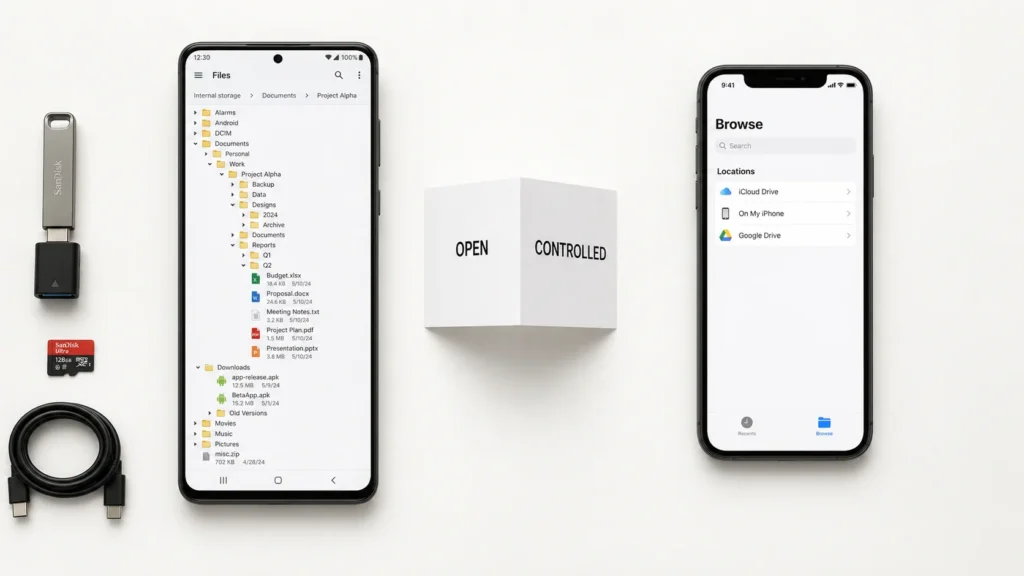
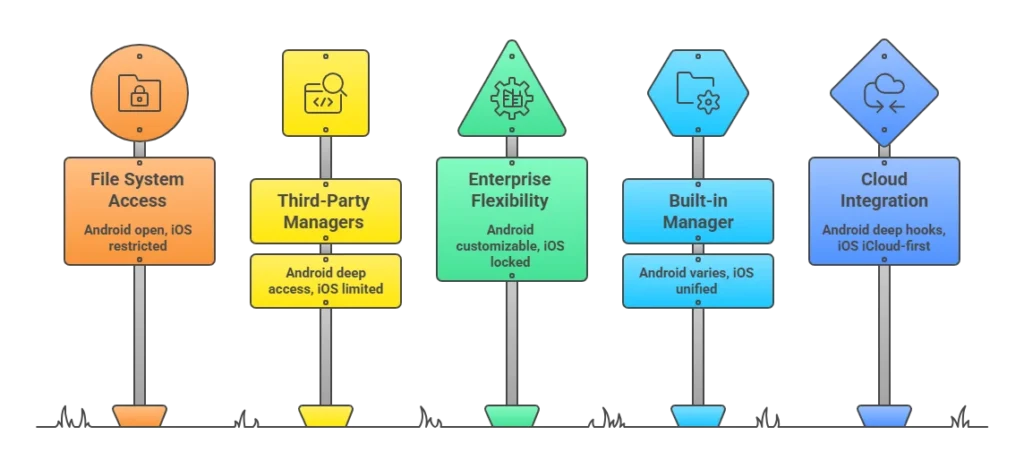
| Feature | Android | iOS |
| File System Access | Open — browse folders, connect USB drives, manage files freely | Controlled through Files app only |
| Third-Party File Managers | Deep system-level access available | Limited to sandboxed access |
| Enterprise MCM Flexibility | Highly customizable across all hardware brands | Robust but tied tightly to Apple’s ecosystem |
| Built-in Manager | Varies by manufacturer | Single unified Files app across all devices |
| Cloud Integration | Google Drive, Dropbox, OneDrive — all deep system-level | Strong iCloud focus, third-party support within Files app |
Android’s fragmentation — different manufacturers, different built-in apps — gets criticized a lot. Fair enough. But that same openness means enterprise solutions like Knox, Intune, or Workspace ONE can go much deeper into the hardware and OS than iOS typically allows.
For a consumer just organizing vacation photos? Doesn’t matter much. For a company managing 10,000 employee devices across different hardware brands? Android’s flexibility is genuinely significant.
So Which Content Manager Do You Actually Need?
Depends entirely on your situation. Genuinely.
You’re a regular user — Files by Google handles 90% of what you’ll ever need. Free, clean, no setup. If you want dual-pane browsing or encrypted vaults, grab Solid Explorer or MiXplorer.
You live in cloud storage — Google Drive or Dropbox already function as your content manager. You might not need a dedicated file manager at all.
Your company manages your device — You’re probably already running an MCM client whether you know it or not. Check with IT. If you’re on a Samsung, Knox is likely already active at the hardware level.
You’re an IT admin or business owner — Look into Android Enterprise documentation first. Then evaluate Samsung Knox, Microsoft Intune, or VMware Workspace ONE based on your device fleet and security requirements.
The term “content manager” sounds more complicated than it is. At the end of the day, it’s just whatever keeps your digital files from becoming that junk drawer everyone has in their kitchen — overflowing, chaotic, and impossible to find anything in.